
Managing personal signatures, fonts and stationery for "New" Outlook and Outlook Web Access
Scenario
You wish to control internal settings for "New" Outlook or the Outlook Web Access client whilst using Signature 365.
Solution
As New Outlook and OWA are hosted on the Microsoft 365 Exchange platform, this must be configured using Exchange Online Powershell commands.
You can use Exchange Powershell cmdlets to set several options and can use a script to set these options for all users on your Exchange Online server.
Connecting to Exchange Online
- If the Exchange Online Powershell module is not installed, open an administrative Powershell window on your device, type Install-Module -Name ExchangeOnlineManagement, and hit Enter.

- You will receive the following prompt - type "Y" to confirm and install.

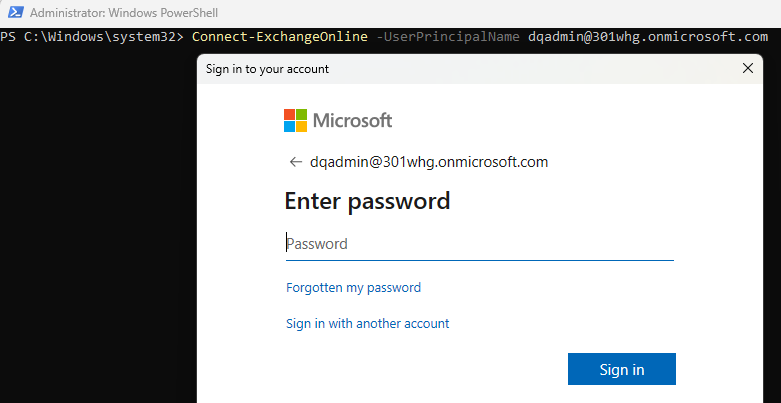
- Log in to Exchange Online using your Global Administrator or Exchange Management credentials.
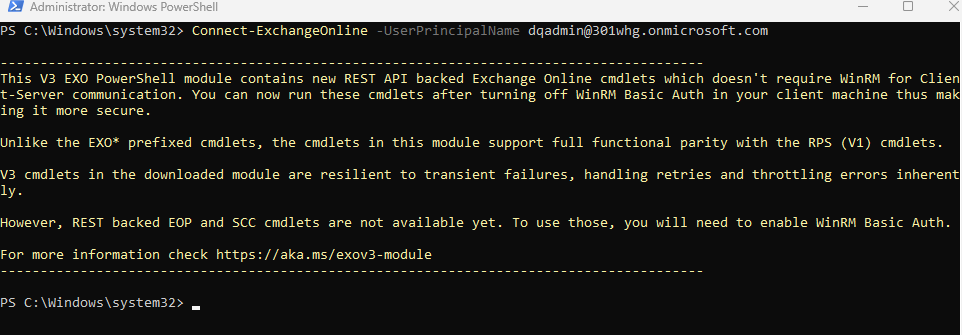
- You will see the following information when connected to Exchange Online.
Disabling all user created signatures
User created signatures can be completely disabled for all users in OWA / New Outlook by using the following powershell command.
Please note that if you are not using the default mailbox policy, you will need to apply this setting to any custom policies used.
Set-OwaMailboxPolicy -Identity "OwaMailboxPolicy-Default" -SignaturesEnabled $false
Setting Outlook default fonts
The following cmdlet is used to set message font with command line arguments:
Set-MailboxMessageConfiguration <username> <parameter>
Set new email font:
-DefaultFontName <Name>
Setting Outlook default font colour
-DefaultFontColor <Color>
Setting Outlook default font size
-DefaultFontSize <Size>
Setting Outlook default font style:
-DefaultFontFlags <Flags>
Where:
<Name>
Font name. If unrecognised, Calibri is used as default
<Colour>
Default colour code surrounded by quotes in RGB format. Default is #000000
<Size>
A integer between 1 and 7. Default is 3, corresponding to 12pt
<Flags>
Specifies the text effect, the following can be used:
- Normal
- Bold
- Italic
- Underline
- All
Example
Set font to Arial 12 point Bold black for new email:
Set-MailboxMessageConfiguration support@symprex.com -DefaultFontName Arial -DefaultFontColour "#000000" -DefaultFontFlags Bold
Removing existing Outlook signatures
The following command line arguments cannot be used if Roaming signatures are enabled on your Office 365 tenant.
Set HTML signature
-SignatureHtml
Set roaming text signature
-SignatureText
Example
To set default signature to blank:
Set-MailboxMessageConfiguration support@symprex.com -SignatureHtml ""
Managing personal signatures, fonts and stationary for Classic Outlook desktop
Use the Symprex Email Signature Utility to manage Classic Outlook fonts, stationery, and personal signatures on local devices.
Updating the Signature 365 Outlook add-in
Manually update the Signature 365 Outlook add-in when a major release requires redeployment through Microsoft 365 or manifest-based installs.